

The lowest‑overhead instant replay for Windows.
Captured and encoded on the GPU. No overlay, no launcher, no account. Press Alt+F10 to keep what just happened.
- Portable .zip (18.0 MB)
- Release notes
- Verify
- 64-bit Windows 10 version 1903 or newer
- An NVIDIA GPU with driver 531 or newer
01 What you get
Records your game. Then gets out of the way.
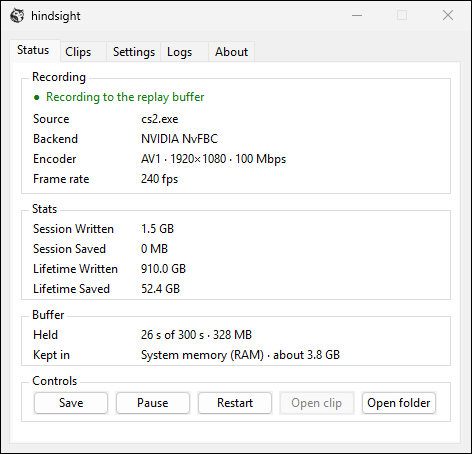
- A tray icon and one small window. No overlay, no account, no launcher. It waits for a full-screen game and records it.
- Cheaper than Instant Replay. Less CPU and fewer lost frames than NVIDIA's at the same settings, measured in-game.
- Buffer in RAM, VRAM or on disk. Keep the replay wherever your machine has room to spare.
- H.264, HEVC or AV1 at up to 240 fps. With system sound as AAC. The settings only offer what your GPU can encode.
02 Install
Three steps, about a minute.
Run the installer.
It is not code-signed yet, so SmartScreen may stop it the first time. Choose More info, then Run anyway. Prefer no installer? Unzip the portable build anywhere.
Launch hindsight from the Start menu.
It sits in the tray, waits for a full-screen game, and records it.
Press Alt+F10 to save a clip.
Change the hotkey, codec, frame rate and buffer in the Settings tab.
03 How it stays light
Your game keeps the CPU. The capture never leaves the GPU.
- Nothing touches the CPU's memory. Each frame is copied once, on the GPU, into a texture NVENC owns, and NVENC converts and encodes it on its own silicon. With NvFBC the encoder reads the grab where the driver left it, so even that copy goes.
- The CPU never reads the video. NVENC reports each frame's type, so packets go into the buffer without being parsed.
- Nothing polls. A waitable timer wakes the capture thread once per frame, in the multimedia scheduling class, and three encode slots rotate so it never waits on the GPU.
- Nothing runs on the shader cores. Single-pass rate control, no B-frames, no lookahead, no adaptive quantization. An unchanged screen is repeated GPU-side.
- Capture gets the GPU first. High GPU thread and scheduling priority, never realtime, and no power throttling.
- Sound is kept raw. It is encoded to AAC only when you save, on the saving thread. Long silences are dropped.
- Saves run in the background. At low CPU, I/O and memory priority, so they never compete with the game.
Run as administrator for the highest GPU priority. To check for yourself, compare CPU use and frame times in PresentMon or CapFrameX with hindsight, with Instant Replay and with neither.
04 Settings
What each setting costs, in short.
- Keep the NVIDIA NvFBC backend. It is the default and costs the game least. Switch to Windows Graphics Capture for a laptop whose display hangs off the integrated GPU, or for HDR.
- Record at the frame rate your clips need. Cost scales with frames captured, not with codec or bitrate. 60 fps costs about a third of what 240 fps does.
- Pick the best codec your card offers. They all cost the same CPU; they differ in picture per bit.
- Keep the buffer in RAM if you have the room. Otherwise VRAM if the card has the room, otherwise Disk on an SSD. Its size is bitrate × length: 30 s at 50 Mb/s is about 190 MB.
- Turn off system sound if you never use it. It is cheap, under a fifth of the video's CPU, but not free.
| Codec | Bitrate for the same picture | Cards |
|---|---|---|
| AV1 | about half of H.264's | RTX 40 series and newer |
| HEVC | about two thirds of H.264's | RTX 20 series and newer |
| H.264 | the most; plays everywhere | every NVIDIA GPU |
The full guide, with every backend and buffer option: Getting the best performance.
05 Verify
Check that your copy is the real one.
hindsight's code is public, so anyone can read what it does. The installer isn't built on someone's own PC: GitHub's servers build it from that public code, and GitHub keeps a signed record of which code each file came from.
That lets you confirm two things: nobody swapped or tampered with your download on its way to you, and it was made from the same code everyone can see, with nothing slipped in.
Quick check: compare fingerprints
Every file has a fingerprint, a long code that changes completely if even one byte of the file changes. Open PowerShell, run this, and compare what it prints with the fingerprint below. If they differ at all, don't run the installer.
Get-FileHash $HOME\Downloads\hindsight-setup-x64.exe04a1dff65316223c1301aef6e9b4700074430139ce855b5e5aa5fb6e40ce57dbThorough check: ask GitHub
With the free GitHub CLI installed, run this in the folder you downloaded to. It checks GitHub's signed record and confirms this exact file was built from hindsight's public code.
gh attestation verify hindsight-setup-x64.exe --repo malinoskj2/hindsightThis proves where the file came from, not that the code is free of bugs; that is what the public source is for. Fingerprints for every file: SHA256SUMS.txt.